Braille Hub
Manual Preview Installation
Braille Hub is not currently published through Microsoft Marketplace. This page provides a manual preview distribution channel for users and organizations that want to evaluate the Microsoft 365 add-in before Marketplace publication is available.
Windows Desktop Preview
For Microsoft 365 Desktop on Windows, the preview installer prepares the same local network-share catalog and trusted Office add-in catalog used by the verified Windows sideload flow.
Download Windows Desktop Preview Installer
The installer downloads the production manifest over HTTPS, creates a local add-in catalog, registers that catalog for the current Windows user, and then opens Word. Windows may show a UAC prompt because creating the local SMB share requires elevated permission. The installer never installs a separate Braille engine inside Office: the add-in still uses the hosted Microsoft365 → SDK → Core runtime.
This is a Windows sideload/testing convenience. It is not Microsoft Marketplace publication. Microsoft documents network-share deployment as a testing mechanism and states that it is not supported for production add-ins.
راهنمای نصب نسخه دسکتاپ ویندوز
ابتدا فایل Windows Desktop Preview Installer را دانلود و اجرا کنید. نصبکننده فایل Manifest نسخه production پروژه را از آدرس HTTPS پروژه دریافت میکند و تنظیمات لازم برای نمایش افزونه در Microsoft Word، Excel و PowerPoint را انجام میدهد.
اگر Word، Excel یا PowerPoint باز باشد، نصبکننده از شما میخواهد ابتدا برنامههای Office را ببندید تا فایلهای ذخیرهنشده بهصورت ناخواسته بسته نشوند. در صورت نمایش پنجره UAC ویندوز، اجازه ادامه نصب را بدهید.
- پس از پایان نصب، Microsoft Word، Excel یا PowerPoint را باز کنید.
- از نوار بالای Office روی Add-ins کلیک کنید.
- در پنجره کوچک بازشده روی Get Add-ins کلیک کنید. در بعضی نسخههای Microsoft 365 همین گزینه با عنوان Advanced نمایش داده میشود.
- در پنجره Office Add-ins وارد تب SHARED FOLDER شوید.
- گزینه Braille Hub را انتخاب کنید.
- روی Add کلیک کنید.
- اکنون دکمه Translate Selection در Ribbon برنامه در دسترس است.
- متن فارسی را انتخاب کنید، روی Translate Selection بزنید و نتیجه Braille را در Task Pane مشاهده کنید.
این روش برای نسخه پیشنمایش و آزمایش روی Windows Desktop است و به معنی انتشار افزونه در Microsoft Marketplace نیست.
Windows setup steps
- Download and run the Windows Desktop Preview Installer.
- Allow the Windows UAC prompt if it appears.
- Close and reopen Word, Excel, or PowerPoint after setup.
- Select Home → Add-ins.
- Choose Get Add-ins, or Advanced when that label is shown.
- Open the SHARED FOLDER tab.
- Select Braille Hub.
- Choose Add.
- Use Translate Selection from the ribbon.
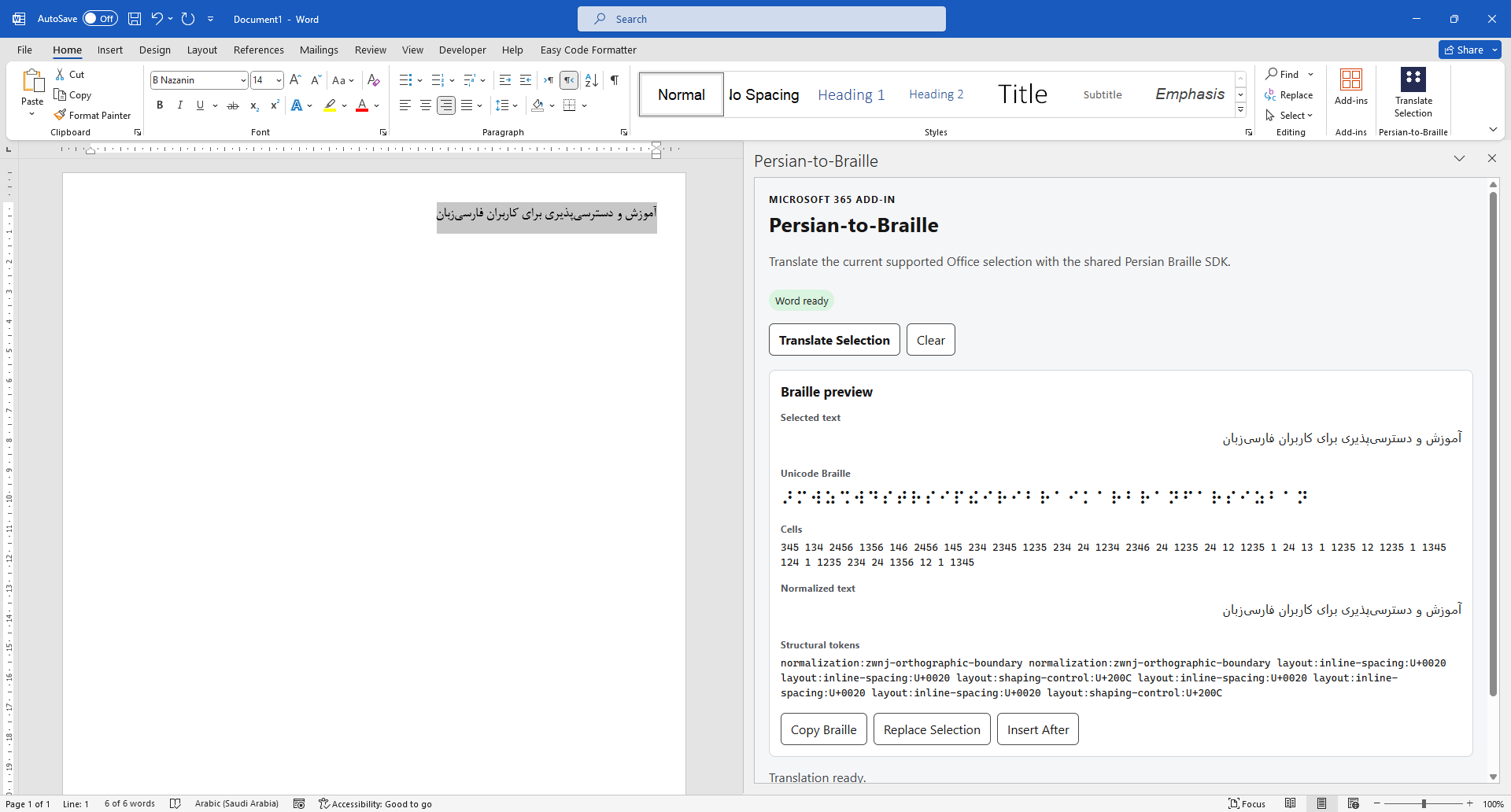
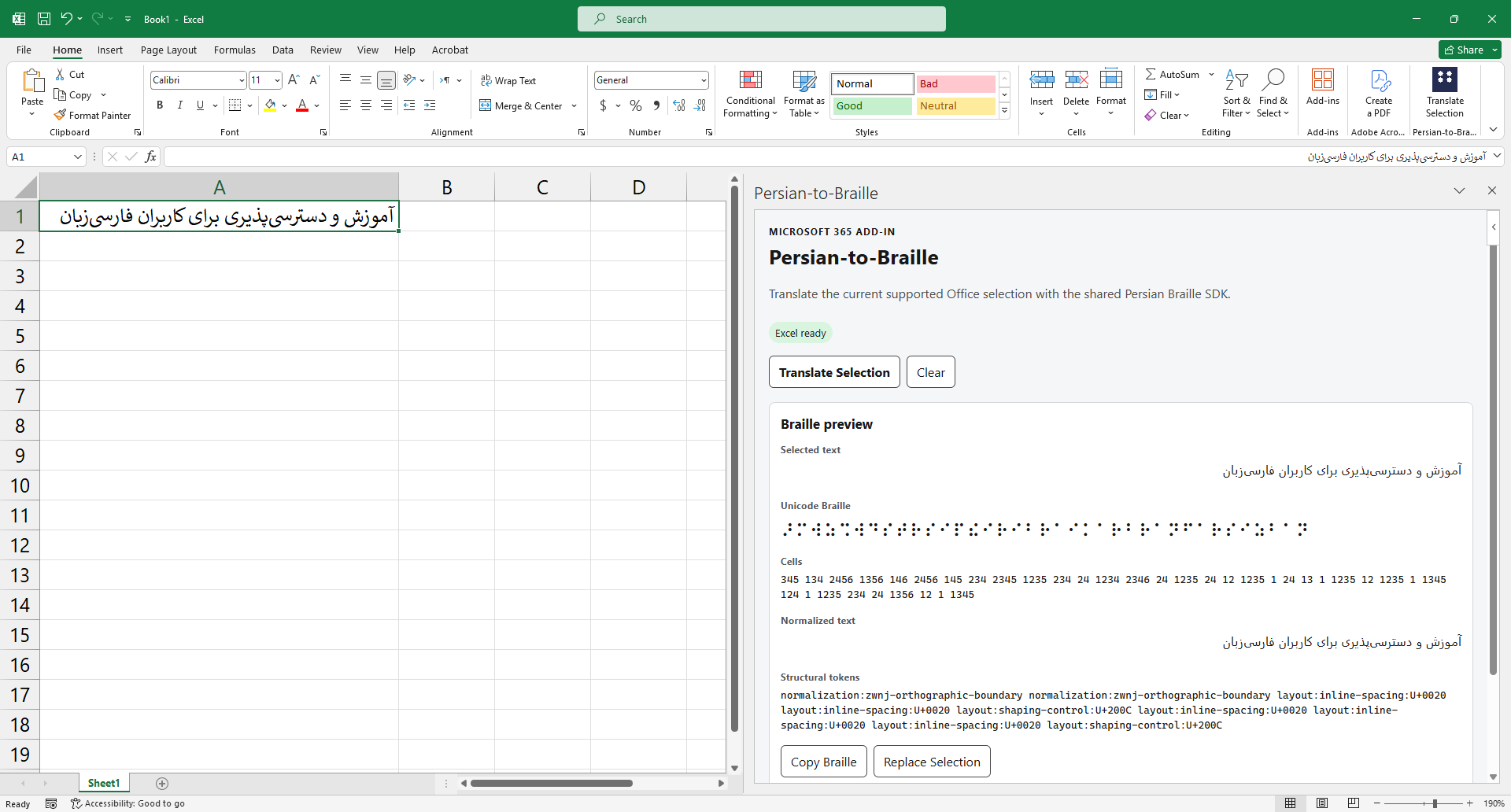
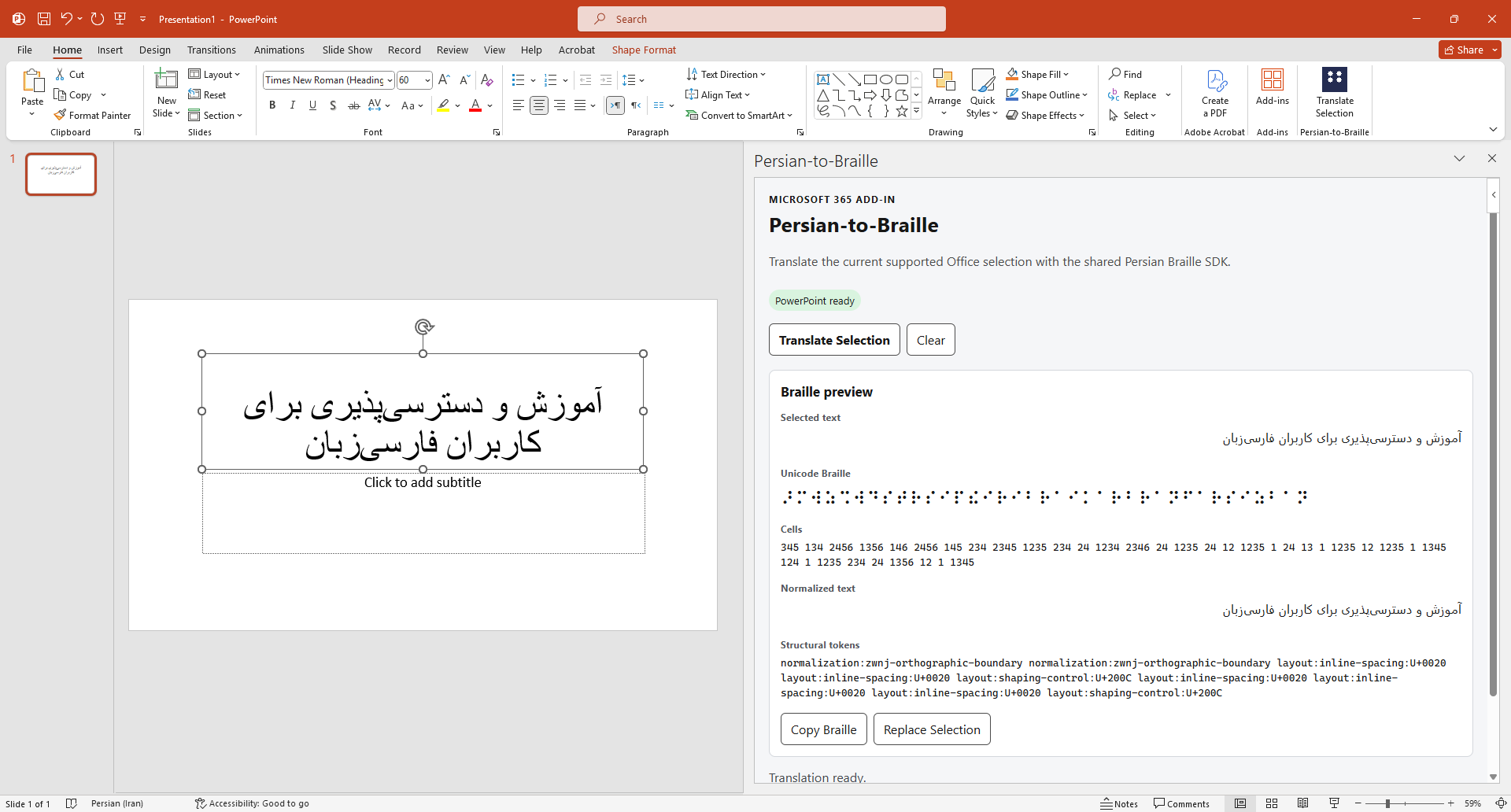
Windows Desktop preview
Word
Excel
PowerPoint
What is available in this preview
- Persian / English text Braille translation through the Microsoft 365 add-in.
- Braille Music from MIDI in Microsoft Word Desktop on Windows.
The Persian / English text tab supports Persian plus
ordinary uncontracted six-dot English/Latin text through the current
fa-ir-g1 Latin-span rules. This is not a claim of
contracted UEB / English Grade-2 support.
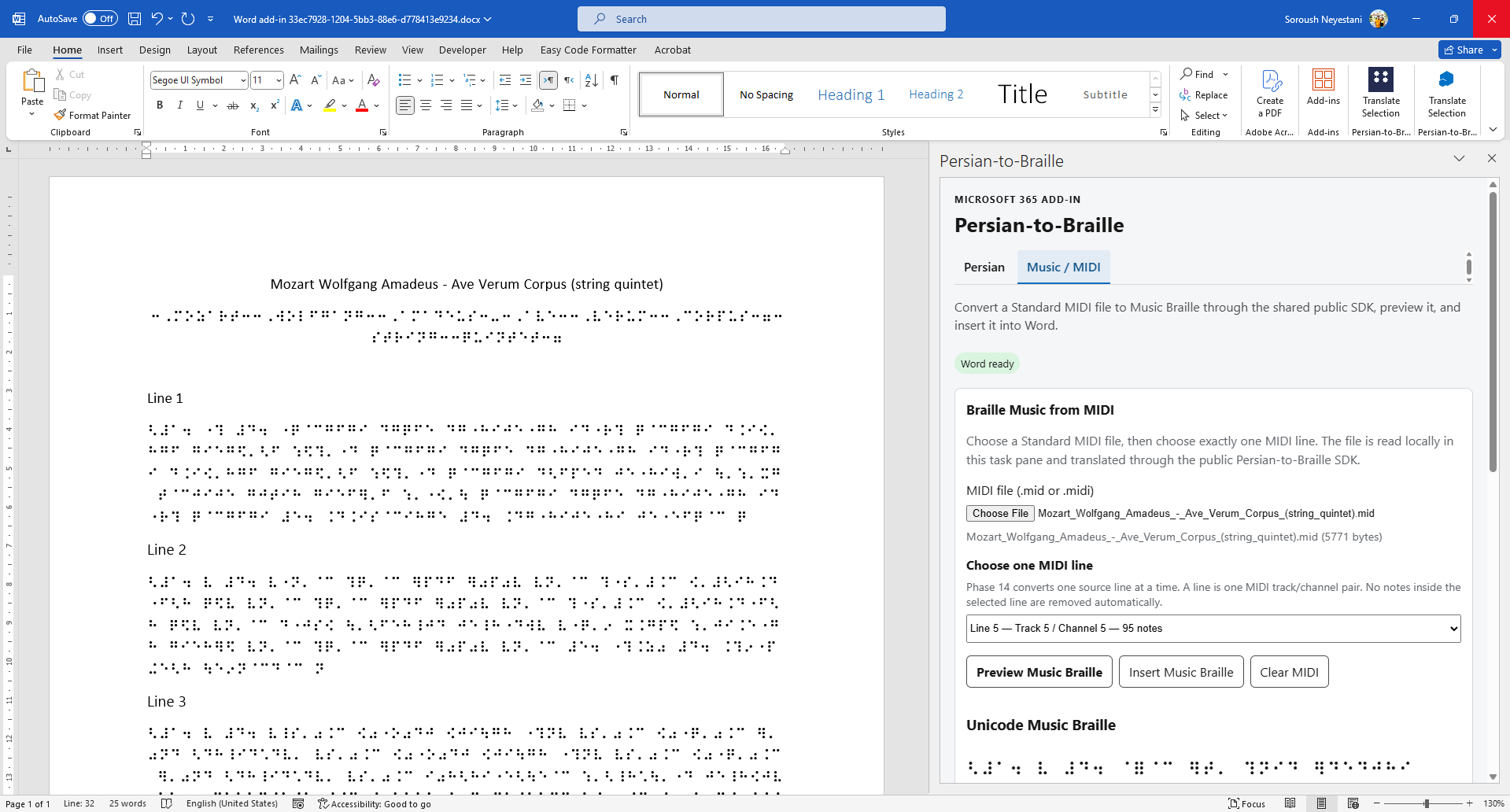
Braille Music from MIDI — Word Desktop / Windows
Braille Music has been live verified in Microsoft Word Desktop on
Windows. Standard MIDI files with a .mid or
.midi extension are read locally by the add-in.
- Open the add-in in Microsoft Word Desktop on Windows.
- Select the Music / MIDI tab.
- Choose a Standard MIDI file.
- Choose exactly one MIDI line. A line is one Track + Channel pair.
- Select Preview Music Braille to generate Unicode Music Braille and BRF / Braille ASCII.
- Select Insert Music Braille to insert the exact successful preview at the current Word caret or selection.
No notes inside the selected line are automatically removed based on instrument, percussion, program, or channel classification.
Some complex MIDI lines may not yet be representable by the current notation bridge. Those lines fail explicitly instead of silently deleting or simplifying musical material. Choose another source line when appropriate.
Whole-song multi-line / All Lines conversion is not exposed in this preview.
Braille Music in Word — live preview
Download the manifest
The hosted manifest below points only to the production HTTPS build of Braille Hub.
Download the Microsoft 365 add-in manifest
Stable manifest URL:
https://soroushneyestani.github.io/Persian-to-Braille/install/manifest.xml
Individual preview — Office on the web
- Download the manifest from this page.
- Open Word, Excel, or PowerPoint in Office on the web.
- Open a document or presentation.
- Select Home → Add-ins → More Settings.
- Select Upload My Add-in.
- Choose the downloaded manifest XML file and upload it.
Microsoft documents this flow as sideloading for development and testing. A web-sideloaded manifest is stored in the browser's local storage, so clearing browser data or switching browsers can require sideloading it again.
Organization deployment — Microsoft 365 admin
Microsoft 365 administrators can centrally deploy an add-in-only manifest to supported users and groups through the Microsoft 365 admin center.
- Open the Microsoft 365 admin center.
- Go to Settings → Integrated apps.
- Open the Add-ins deployment flow.
- Choose the custom add-in option.
- Upload the downloaded manifest, or provide the stable manifest URL shown above when the tenant UI offers URL-based manifest upload.
- Assign the add-in to the intended users or groups.
Mac preview
Microsoft also documents manual manifest sideloading on Mac for
testing. The manifest is copied into the Office application's
wef folder and the host application is restarted.
Refer to Microsoft's current sideloading documentation for the
host-specific folder path.
Windows desktop note
The Windows Desktop Preview Installer automates preparation of a local network-share catalog for sideload testing. Microsoft documents network-share deployment as a testing mechanism and states that it is not supported for production add-ins.
Current verified scope
- Word on Windows: live verified.
- Excel on Windows: live verified.
- PowerPoint on Windows: live verified.
- Web and Mac: release-gate execution remains pending.
Manual availability does not change those verification claims.